Contents
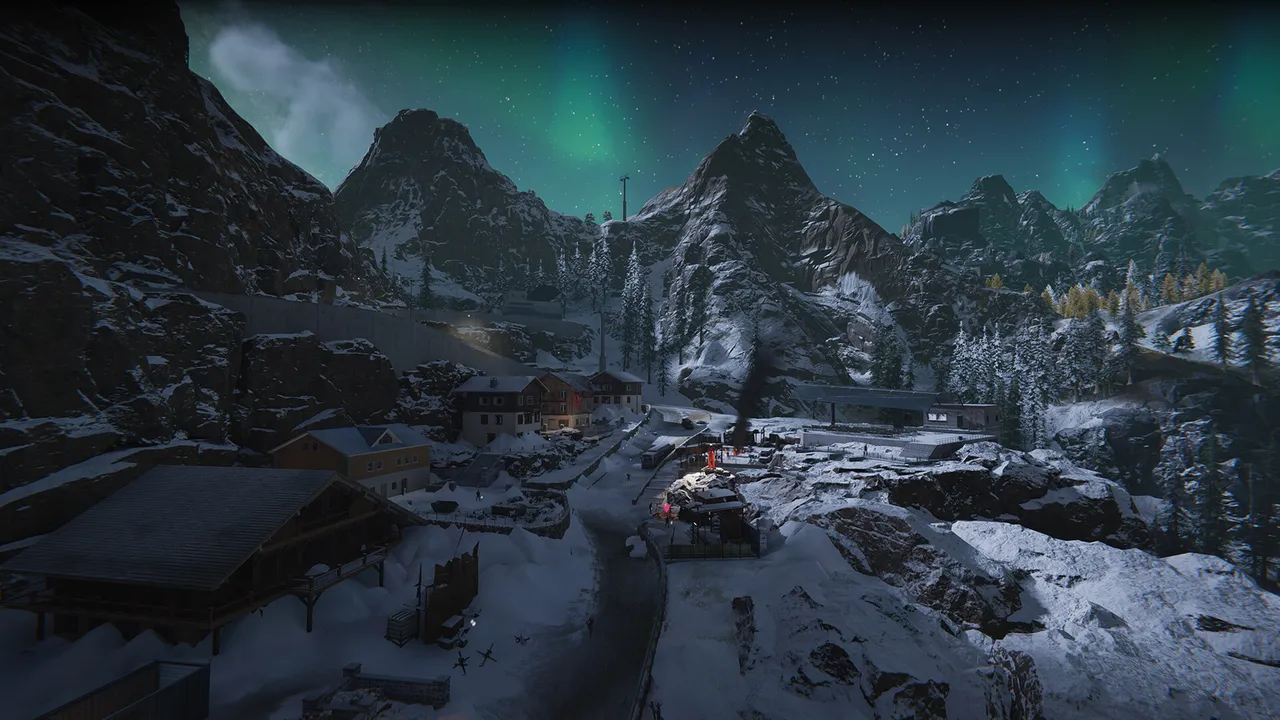
Once Human is a free-to-play survival game with a huge open world. It mixes dense forests, ruined towns, giant bosses and player territories full of machines, lights and furniture. That mix stresses three parts of a PC: the graphics card in foliage-heavy areas, the processor in crowded fights and bases, and the storage drive every time the world streams in new areas.
The official requirements are modest, but a slow drive or a few heavy defaults can make even a decent PC stutter. Here are the specs, the settings worth changing, laptop tips and a stutter checklist.
Official PC requirements
These are the requirements listed on Once Human's Steam page (app 2139460), published by Starry Studio and NetEase Games.
| Minimum | Recommended | |
|---|---|---|
| OS | Windows 10 64-bit | Windows 10 64-bit |
| Processor | Intel Core i5-4460 / Snapdragon X | Intel Core i7-7700 / Snapdragon X2 Elite |
| Memory | 8 GB RAM | 16 GB RAM |
| Graphics | Nvidia GTX 750 Ti 4 GB / AMD Radeon RX 550 / Qualcomm Adreno X1 | Nvidia GTX 1060 6 GB / AMD Radeon RX 580 2304SP / Intel Arc A380 / Qualcomm Adreno X2 |
| DirectX | Version 11 | Version 12 |
| Network | Broadband connection | Broadband connection |
| Storage | 100 GB available space | 100 GB available space |
A few things stand out:
- The SSD note is official. Both columns say an SSD is "highly recommended." On a hard drive, expect long loads and textures that sharpen late when you travel fast.
- 16 GB of RAM is the real target. 8 GB is the floor, but with Discord, a browser and the launcher open, it fills fast.
- Windows only, with Snapdragon support. Steam lists no Mac or Linux version. Windows on Arm laptops with Snapdragon X chips are named in the official specs, which is rare for a game this size.
Best graphics settings for Once Human
Start from the Medium preset, then change these options. Menu names can shift slightly between updates, so look for the closest match in your version.
| Setting | Recommended | Why |
|---|---|---|
| Display mode | Fullscreen or borderless fullscreen | Fewer frame pacing issues than windowed mode |
| Graphics API | DirectX 12 on modern cards (restart required) | Needed for DLSS options; DirectX 11 is the fallback if DX12 stutters |
| Frame rate cap | 60, or your monitor's refresh rate if you can hold it | A stable cap feels smoother than a number that jumps |
| Render scale | 100 at native resolution | Lower it only on weak GPUs; it softens the image fast |
| Upscaling (DLSS or FSR) | Quality, then Balanced if needed | The biggest single frame gain |
| Textures | High with 6 GB of video memory or more, Medium on 4 GB cards | Too high for your card causes hitching, not just lower fps |
| Shadows | Low or Medium | One of the most expensive options in forests and towns |
| Vegetation density | Low or Medium | Dense grass and trees are heavy on every GPU |
| Visual effects | Low or Medium | Boss fights fill the screen with particles |
| View distance | Medium to High | Helps you spot enemies, resources and other players |
| Anti-aliasing | TAA for image quality, FXAA for more frames | Skip it if upscaling already handles anti-aliasing |
| Motion blur | Off | Clearer image while aiming and turning |
On a GeForce RTX card, switch the graphics API to DirectX 12 and restart the game to unlock the DLSS options. Players on the Steam forums found that DLSS stays hidden until you do this. RTX 40 series cards and newer can also use frame generation, and NVIDIA Reflex helps keep input lag low. Use frame generation only when your base frame rate is already around 50 or higher, or aiming will feel floaty.
If you still need more frames, lower these in order:
- Upscaling one step (Quality to Balanced, then Performance).
- Shadows.
- Vegetation density.
- Visual effects.
- View distance, one step at a time.
- Textures, only if you see stutter or run out of video memory.
Keep boss fights and busy bases smooth
Two situations stress your PC far more than quiet exploration, so test your settings in both.
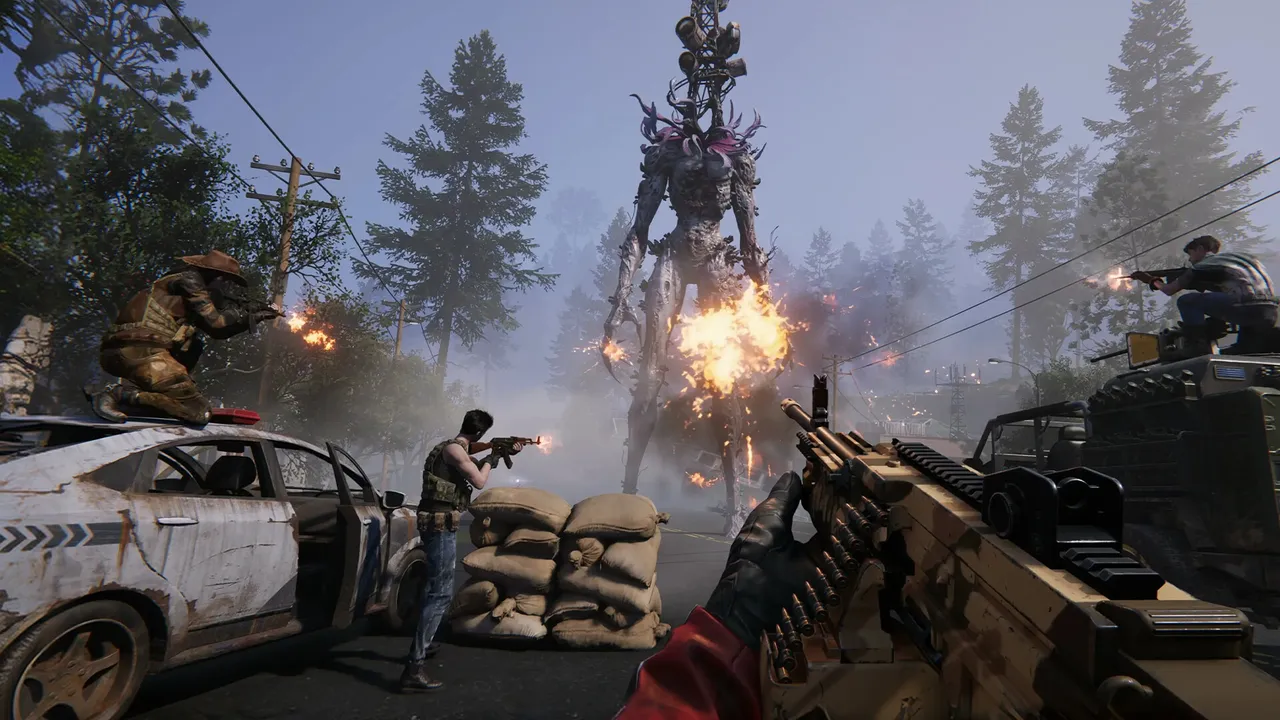
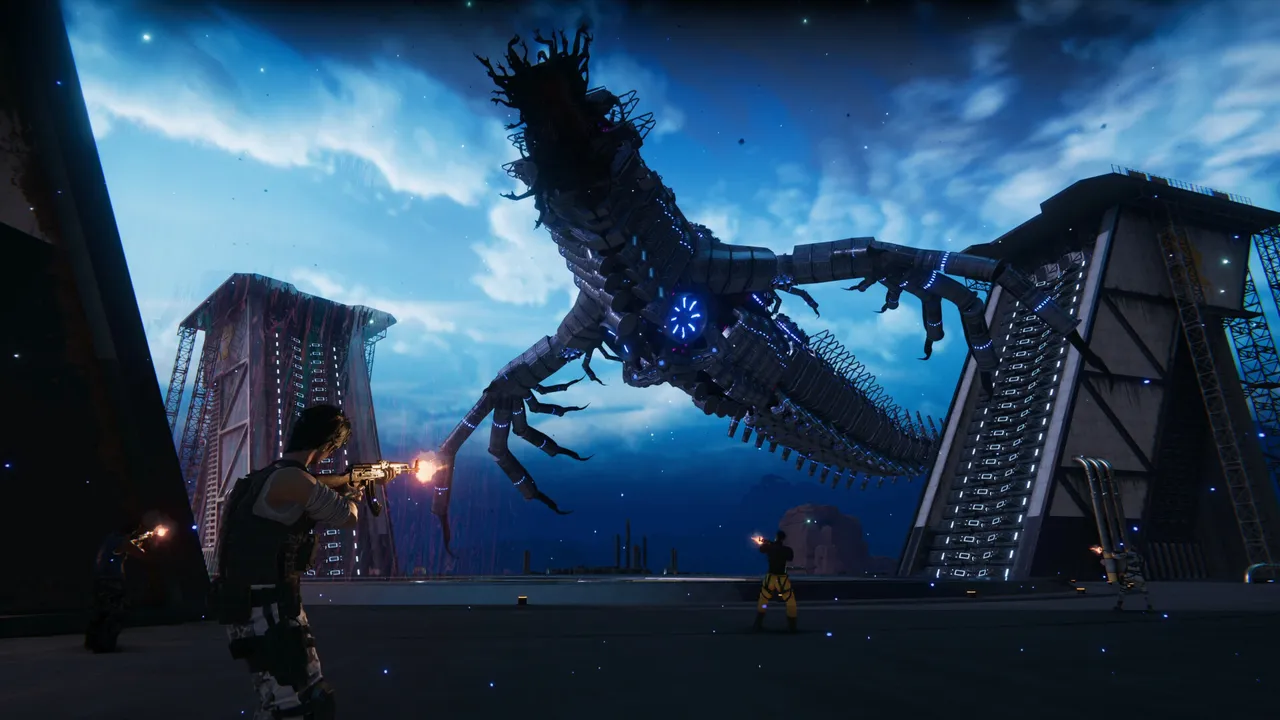
Big bosses and group events. World bosses, public crisis events and raids bring many players, projectiles and explosions on screen at once. Lowering visual effects helps the most here. If your frame rate drops only in these moments while your GPU isn't fully busy, the processor is the limit, and cutting resolution won't help much.
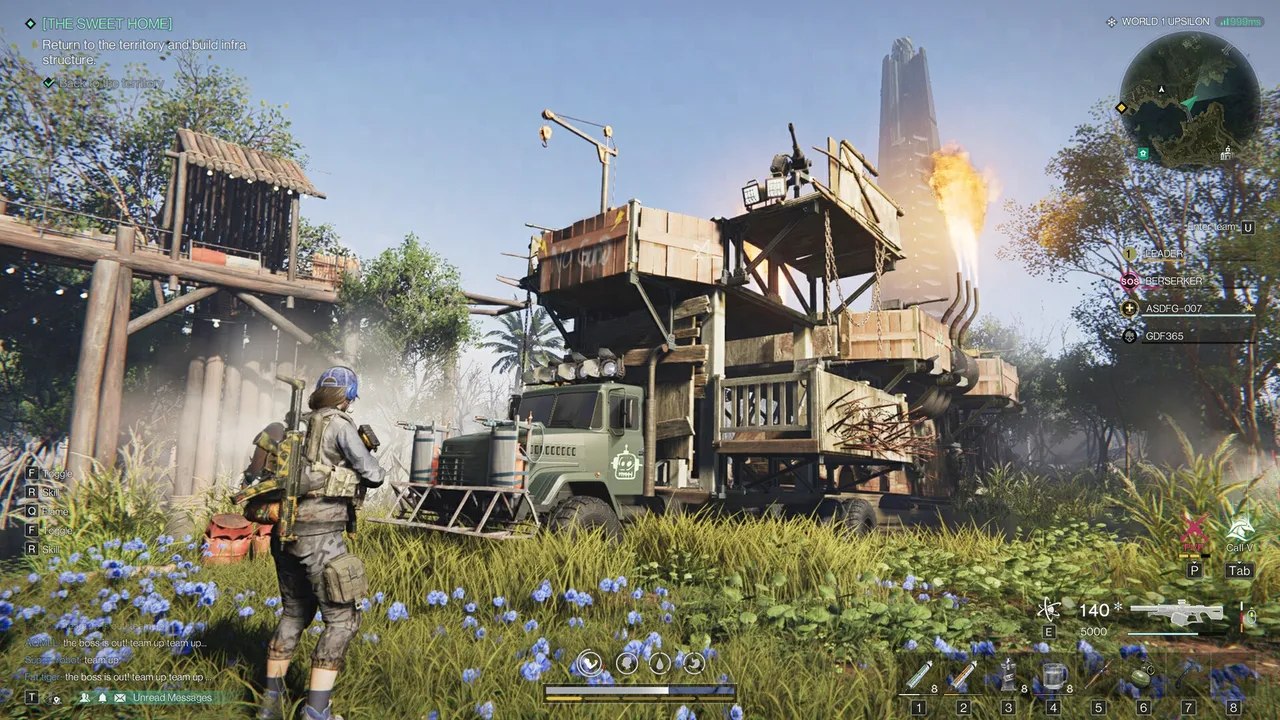
Large territories. Players build big bases full of machines, lights and decorations, and servers mix many territories in the same area. Shadows and view distance cost much more in a crowded settlement than in the wild. Drop shadows one step and pull view distance back a notch if your base runs slower than the open world.
The Isles of Abyss scenario, launching on October 21, 2026, adds open water and diving, so re-check your settings after big updates.
Playing on a laptop
- Plug in and switch to your laptop's performance mode. Most gaming laptops cut GPU power hard on battery.
- Make sure the game uses the dedicated GPU. In Windows graphics settings, set the game to high performance.
- Cap at 60 fps or lower. Long sessions with no cap mean heat, noise and throttling.
- On Snapdragon laptops, keep Windows and graphics drivers fully updated, start at low to medium settings and keep the game on the internal SSD.
- Use upscaling early. A thin laptop benefits more from FSR or DLSS on Quality than from dropping every option to Low.
Steam Deck and handhelds. Valve rates Once Human as Unsupported on Steam Deck, so it won't run under SteamOS. Windows handhelds can run it as a normal PC game. Start at low settings, a 40 to 60 fps cap and a reduced render scale, and expect dips in crowded areas.
Peripherals that help
- A mouse with side buttons. Map healing, throwables, building mode or your Deviant controls to them so you don't reach across the keyboard mid-fight.
- A headset with clear positional audio. Creature sounds and footsteps tell you where threats come from, which matters in PvP scenarios.
- A controller, if you prefer. The game supports gamepads on PC, and some players find them more relaxing for exploring and driving.
- A second monitor. Keep maps, build planners or a guide open while you design your territory.
Fixing stutter
- Move the game to an SSD. The developers recommend it for a reason; streaming stutter is common on hard drives.
- Update your graphics drivers, then let the game rebuild its shaders on the first launch after an update.
- Try the other graphics API. If DirectX 12 stutters on your card, test DirectX 11 for a session, and vice versa.
- Lower textures one step if hitching happens when you turn or enter new areas, especially on cards with 4 GB of video memory.
- Close background apps, above all browsers playing video and overlays you don't use.
- Verify the game files in Steam if crashes or odd visuals keep coming back.
Quick checklist
- Install on an SSD with at least 100 GB free.
- Aim for 16 GB of RAM.
- Use DirectX 12 on modern cards, then pick DLSS or FSR on Quality.
- Shadows, vegetation and visual effects on Low or Medium.
- Cap your frame rate to a number you can hold.
- Lower visual effects first for boss fights and crowded bases.
Once your PC runs smoothly, read our Once Human beginner's guide for tips on territory, Memetics and early builds.
More on Once Human
Sources
- store.steampowered.com · store.steampowered.com/app/2139460/
- steamcommunity.com · steamcommunity.com/app/2139460/discussions/0/6149189044494526033
- steamstore-a.akamaihd.net · steamstore-a.akamaihd.net/news/externalpost/steam_community_announceme