Contents
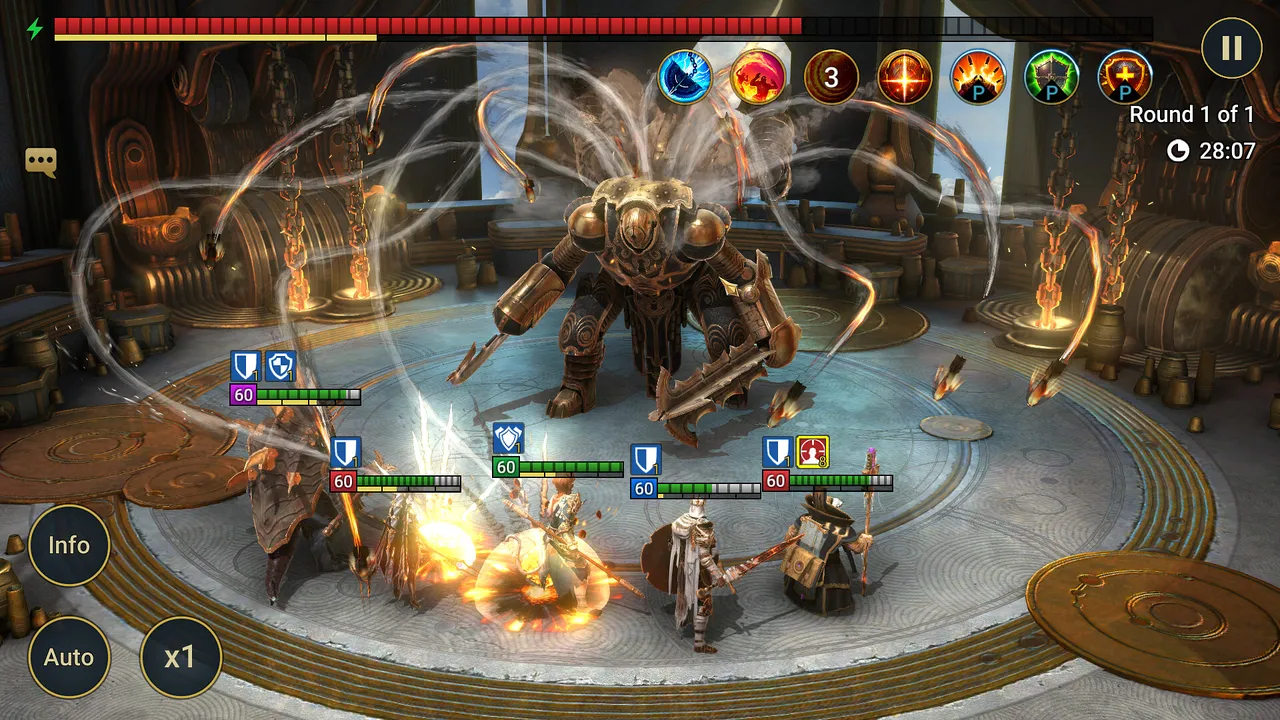
RAID: Shadow Legends is a turn-based collection RPG, so it never asks your graphics card for much in a single fight. The real load comes from time. Many players leave the game running for hours, repeating dungeons, the campaign and Doom Tower stages on auto. That turns a light game into a long, steady workload, and it shows up as heat, fan noise, battery drain and slowdowns over long runs.
This article covers the official PC requirements, the settings that matter, how to set up long Multi-Battle sessions, laptops and Mac, useful gear and a stutter checklist.
Official PC requirements
These specs come from RAID's Steam page (developer and publisher: Plarium Global Ltd).
| Minimum | Recommended | |
|---|---|---|
| OS | Windows 10 version 21H1, Windows 11 21H2 | Windows 10 version 21H1 or newer (x64), Windows 11 21H2 or newer (Arm64) |
| Processor | x86/x64 with SSE2 instruction set, or Arm64 | x86/x64 with SSE2 instruction set, or Arm64 |
| Memory | 8 GB RAM | 8 GB RAM |
| Graphics | DirectX 11 / Vulkan-capable GPU | DirectX 11 or newer / Vulkan-capable GPU |
| DirectX | Version 11 | Version 11 |
| Storage | 5 GB available space | 8 GB available space |
A few notes:
- 64-bit only. Steam states that a 64-bit processor and operating system are required.
- Arm laptops are officially supported. Arm64 is listed alongside x86/x64, so Windows on Arm machines are covered.
- Plan for the larger number. Storage grows with every update, so leave more than 8 GB free. An SSD shortens the loading screens between battles.
- Mac and Linux. Steam lists Windows only. Plarium does offer RAID on Mac through its own Plarium Play launcher (more below). There is no official Linux or Steam Deck version, so treat either as unsupported.
Your account works across Steam, Plarium Play and mobile. Link it in the game settings before you switch, and never run the same account on two devices at once.
Best settings for RAID on PC
Plarium's PC launch promised configurable graphics, an unlimited frame rate option and a scalable windowed mode. Option labels can shift between versions, so match these to what your menu shows.
| Setting | Recommended | Why |
|---|---|---|
| Frame rate | Your monitor's refresh rate, or unlimited on a strong desktop | Community guides report that battle animations play faster at higher frame rates, which adds up over hundreds of runs |
| Graphics quality | High on a desktop with a dedicated GPU, Low on older laptops | Effects look nice in manual fights but add nothing to auto-farming |
| Window mode | Windowed | Lets you use the PC while battles run. Alt+Enter toggles full screen |
| Battle speed | Fastest available | Shortens every run. Shift cycles speed in battle |
| Sound and music | Off for farming | Saves a little CPU work and keeps long sessions quiet |
| Hotkeys | Learn the defaults | Q, W and E fire skills, T toggles auto, R replays a battle |
If you still need more frames, go in this order:
- Lower graphics quality one step.
- Cap the frame rate at 60 instead of unlimited.
- Close browser tabs, video and overlays running beside the game.
- Switch from full screen to a smaller window.
- Move the game to an SSD if it sits on a hard drive.
There is a trade-off with frame rate. Unlimited may speed up animations, but it also keeps your GPU busy all the time. On a desktop with good cooling, that is fine. On a laptop or a small PC, a cap at your refresh rate is the better balance.
Long Multi-Battle sessions
Multi-Battles are where RAID really tests a PC, because the game repeats the same stage dozens or hundreds of times. Plarium has added Background Multi-Battles and Background Auto-Climb for the Event Dungeon (update 11.65), so a run can continue while you use Live Arena, manage gear or summon. Update 11.80 also expanded the Doom Tower Auto-Climb reward window to show every reward earned.
To keep long runs stable:
- Test your team first. Make sure it clears the stage every time before you queue a big run.
- Free up inventory. A full artifact or champion inventory can stop a run early.
- Tick the max-level option when training. If your version shows "Continuously run even if all Champions are at Max Level", turn it on so training doesn't stop each time a champion levels up.
- Keep the PC awake. Set your power plan so the display can turn off but the PC never sleeps.
- Stay updated. Update 11.80 (October 8, 2026) fixed a bug that made Multi-Battles with Khamir Scald-eye slow down over consecutive runs and overheat devices. If your runs felt sluggish in September, try again on the current version.
Playing on a laptop
- Plug in for any long session. Battery mode often slows the CPU and GPU.
- Pick a balanced power mode. RAID doesn't need maximum performance, and your laptop runs cooler and quieter.
- Cap the frame rate at 60 or your screen's refresh rate to cut heat.
- Give it air. A stand or a raised back edge helps the fans pull in cool air.
Mac and mobile
On Apple Silicon Macs, Plarium's September 4, 2026 digest says Plarium Play will ask you to install Rosetta the first time you open RAID if it isn't already on your Mac. Plarium calls it a temporary workaround that stops Events, Tournaments and the FAQ from crashing, so accept the prompt. On phones, plug in for long sessions, use Wi-Fi for Live Arena (a dropped connection costs you the match), and keep storage free for regular updates.
Peripherals that help
- A comfortable mouse with a good scroll wheel. Equipping artifacts, selling gear and ranking up champions means thousands of clicks and long scrolling lists.
- A second monitor. Keep a team-building tool, clan chat or a guide open while you play.
- A laptop cooling stand. Useful if you farm on a laptop for hours.
- A compact keyboard. RAID's hotkeys cover most screens, so a small board on the desk is enough.
- Headphones, if you play manual content like Live Arena and like hearing the effects.
Fixing stutter
- Update the game. Several recent patches fixed Multi-Battle slowdowns and overlay bugs.
- Restart RAID after very long runs. If battles slow down over hours, a fresh launch clears it.
- Update your GPU driver from your graphics card maker.
- Lower graphics quality and cap the frame rate, especially on laptops that heat up.
- Check free disk space and keep the game on an SSD.
- Close overlays and recording apps you don't need.
- Use a wired connection for Live Arena and Clan vs Clan, where network hiccups feel like stutter.
Quick checklist
- Windows 10 21H1 or newer, 64-bit, 8 GB RAM, 8 GB free on an SSD.
- Link your account before switching platforms.
- Frame rate at your refresh rate, unlimited only on a well-cooled desktop.
- Windowed mode and the fastest battle speed for farming.
- Free inventory and a PC that never sleeps before big Multi-Battles.
- Mac players: accept the Rosetta prompt in Plarium Play.
Ready to build your first team? Read our RAID: Shadow Legends beginner's guide next.
More on RAID: Shadow Legends
Sources
- store.steampowered.com · store.steampowered.com/app/2333480/
- steamstore-a.akamaihd.net · steamstore-a.akamaihd.net/news/externalpost/steam_community_announceme
- steamstore-a.akamaihd.net · steamstore-a.akamaihd.net/news/externalpost/steam_community_announceme