Contents
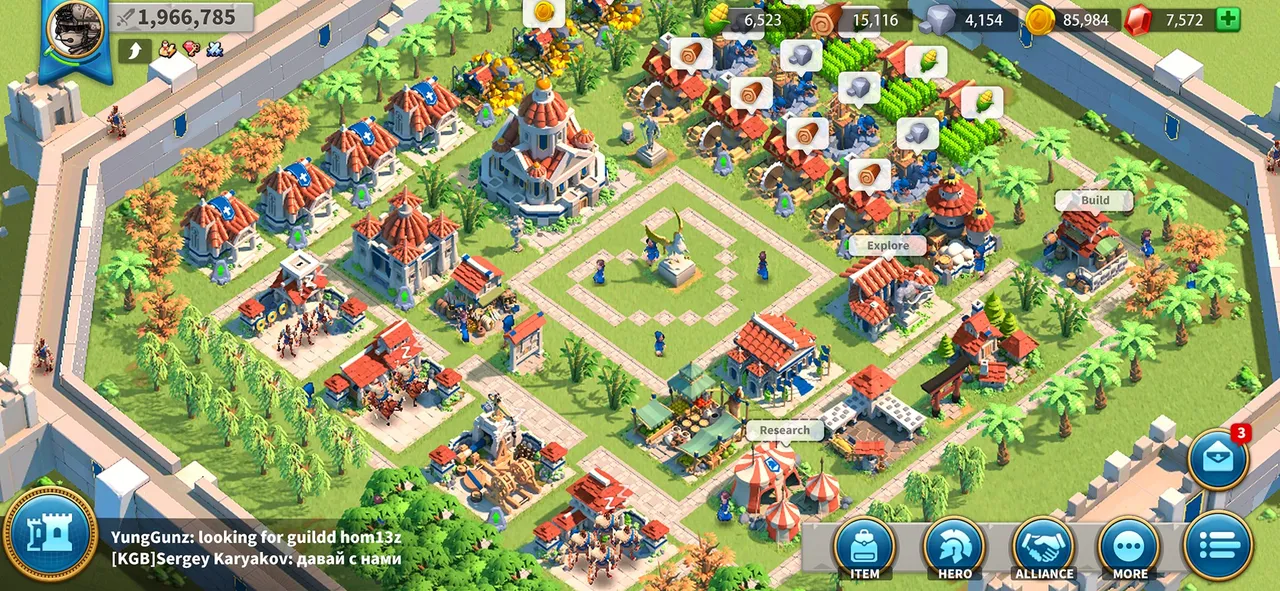
Rise of Kingdoms is a mobile strategy game first, and it isn't on Steam. That doesn't mean you're stuck on a phone. The game is light on graphics but heavy on attention: during Kingdom vs Kingdom (KvK) you may be steering several armies, watching rally timers and reading a crowded map at once. A big screen and a mouse help with all of that. This article covers the official ways to play on a computer, what each one needs, how to move your account safely, the settings worth changing and how to keep big battles smooth.
Official PC requirements
Lilith Games doesn't publish a spec sheet for its own Windows client. The official site, rok.lilith.com, offers a Windows download and a Mac App Store link, with no hardware list. The two store platforms do publish requirements, so here is everything that's official:
| Platform | Official requirement | Source |
|---|---|---|
| Lilith Windows client | No official specs published | rok.lilith.com |
| Google Play Games on PC | Windows 10 (version 2004), SSD with 10 GB free, 4 physical CPU cores, Intel UHD Graphics 630 or comparable GPU, 8 GB RAM, Windows admin account, hardware virtualization on | Google Play Games |
| Mac (App Store) | macOS 11.0 or later, Apple M1 chip or later | App Store |
| iPhone / iPad | iOS / iPadOS 13.0 or later, about 2.2 GB download | App Store |
A few notes:
- SSD. Google requires one for its platform, and it's a good idea for the Lilith client too. The world map streams a lot of terrain and troops as you scroll.
- RAM. 8 GB is the floor Google sets. If you keep Discord, a browser with rally sheets and the game open together, more memory gives you headroom.
- Mac. Only Apple Silicon Macs (M1 and newer) are listed. Intel Macs aren't covered by the App Store version.
- Linux and ARM Windows. Neither is listed as supported by any official source.
Your options to play on a computer
| Option | Platform | Good to know |
|---|---|---|
| Lilith's PC client | Windows | Download from the Windows button on rok.lilith.com. Lilith calls it the PC version, with cross-platform play alongside mobile. |
| Google Play Games on PC | Windows | The Google Play listing shows the game as available on Android and Windows. Installs through Google's app. |
| Mac App Store | Apple Silicon Macs | Same App Store entry as iPhone and iPad (Lilith Games), linked from the official site. |
Which one to pick? On Windows, start with Lilith's own client: it comes straight from the publisher and is built for the game. Google Play Games on PC is a solid alternative if you already use it, but its requirements are stricter, since you need virtualization switched on and an admin account. On a Mac with an M-series chip, the App Store version is the only official route. Third-party Android emulators also run the game, but they add software and resource overhead you don't need when an official client exists.
Protect your account first
Your city lives on Lilith's servers, but you only reach it through a linked login. Before you install anywhere new:
- Bind your account in the in-game settings to a login you control, such as a Lilith account, Google, Apple or Facebook.
- Write down your governor ID and kingdom number. It helps if you ever need support.
- Install on your computer and sign in with the same login.
- Check your city name, power and kingdom before you spend anything or teleport.
Expect one active session at a time. Check in game whether signing in on one device logs out the other, and don't try to play both during a fight. Never hand your login to "account sitters" outside your alliance's trusted leadership, and only download the game from rok.lilith.com, Google Play or the App Store.
Best settings for Rise of Kingdoms on PC
Rise of Kingdoms gives you fewer knobs than a PC game. The September 2026 update (1.1.12.20) changed one default: devices with a medium graphics recommendation now show remastered troop models, and you can switch this under Unit Visuals. For other options, the names may differ by platform, so look for them in your version's settings.
| Setting | Recommended | Why |
|---|---|---|
| Graphics quality (if your version has it) | High on a desktop, medium on older laptops | The game is light, and clearer models make troop types easier to read |
| Unit Visuals | Remastered on capable PCs, classic if the map feels slow | Classic models are cheaper to draw when hundreds of troops are on screen |
| High frame rate (if available) | On, when plugged in | Smoother scrolling and marching on the world map |
| Window size | Full screen or a large window | You see more of the map and spot enemy marches early |
| Notifications | On for attacks and rallies | You won't miss a hit while another app has focus |
If you still need more frames, in this order:
- Switch Unit Visuals to classic.
- Drop graphics quality one step.
- Turn off the high frame rate option if your machine runs hot.
- Close browser tabs and overlays you aren't using.
Big battles and KvK
The game's heaviest moments aren't city building. They come from zooming out over a contested pass, a crowded Ark of Osiris fight or a KvK field battle with dozens of marches. Each march brings models, effects and damage numbers. When that load spikes, readability matters more than looks. Lower visuals before a planned war instead of mid-fight, and keep the camera zoomed in a step when you're micromanaging. A wired network connection also helps: lag during a rally is a bigger risk than a lower frame rate.
Playing on a laptop
- Plug in. Laptops often limit graphics power on battery, and a long KvK session drains it quickly.
- Use the high-performance power mode in Windows, or keep a MacBook on power during wars.
- Check heat. A thin laptop can slow itself down after an hour of heavy fighting. A cooling stand or a hard, flat surface helps.
- On phones, keep free storage for updates, play on Wi-Fi during events and turn off battery saver for fights.
Peripherals that help
- A mouse with a comfortable shape. Dragging marches and clicking targets is faster and more precise than on a touchpad.
- A larger monitor. More of the map fits on screen, so you react sooner to incoming attacks.
- A second screen. Keep alliance chat, rally timers or a battle plan open next to the game.
- A headset with a microphone. Many alliances run voice calls during KvK.
- A wired network adapter or a strong router. Stable latency matters more than raw speed in rallies.
Fixing stutter
- Update the game and, on Windows, your graphics driver.
- Switch Unit Visuals to classic and lower graphics quality.
- Close background apps, especially browsers with many tabs.
- Move the game to an SSD if it's on a hard drive.
- On Google Play Games, confirm that virtualization is on and that you meet Google's requirements.
- Use a wired connection, or move closer to your router.
- If problems persist, contact support from inside the game with your governor ID.
Quick checklist
- Bind your account before installing on a new device.
- Windows: Lilith's client from rok.lilith.com, or Google Play Games on PC.
- Mac: App Store version, Apple Silicon only.
- Play from an SSD with a stable connection.
- Lower Unit Visuals before big KvK fights.
- Use a mouse and a big screen for wars.
New to the game itself? Read our Rise of Kingdoms beginner's guide next.
More on Rise of Kingdoms
Sources
- rok.lilith.com · rok.lilith.com/
- apps.apple.com · apps.apple.com/us/app/rise-of-kingdoms/id1354260888
- play.google.com · play.google.com/store/apps/details?id=com.lilithgame.roc.gp