Contents
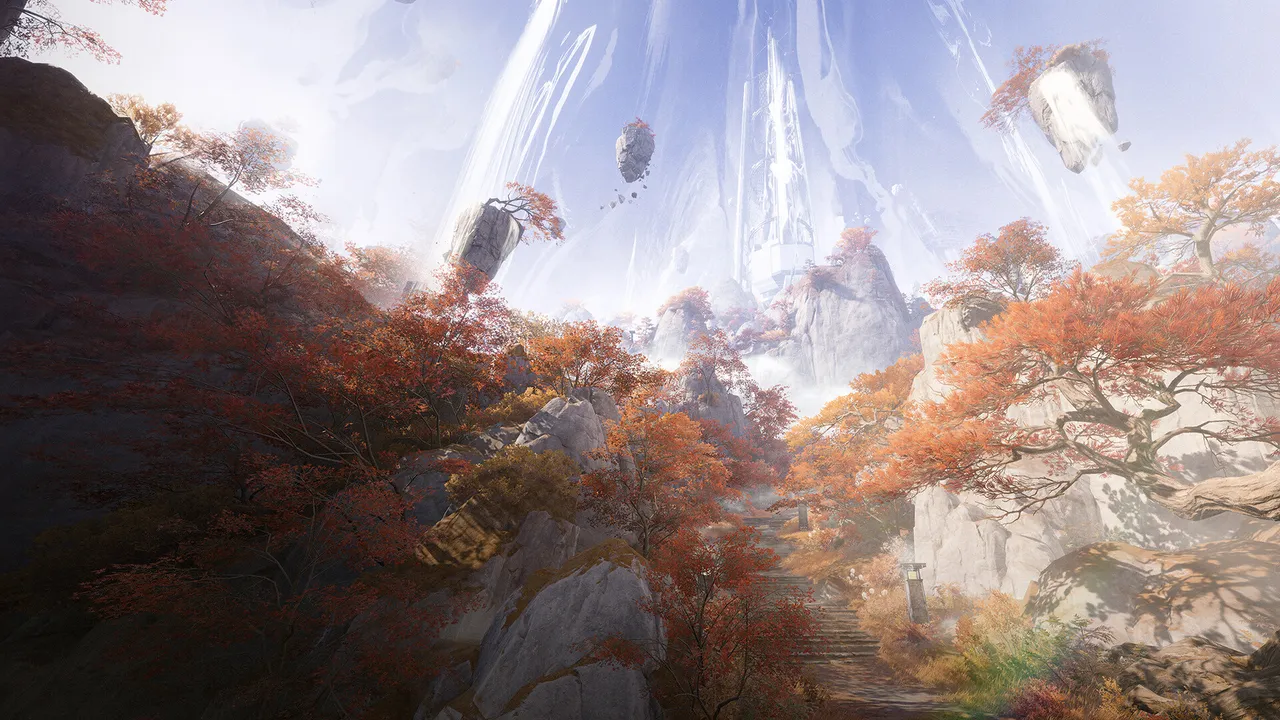
Arknights: Endfield mixes open-world exploration, real-time combat and factory building. That puts a steady load on the graphics card, and a heavier one on the CPU and memory when your base grows. It is not a hardware monster, but it rewards a few smart settings choices. This guide covers the official requirements, the settings worth changing, laptop tips and a stutter checklist.
Official PC requirements
These come from the Steam store page. The game is free to play and launched on Steam on October 15, 2026 (Asia time; the Steam store lists October 14).
| Minimum | Recommended | |
|---|---|---|
| OS | Windows 10 64-bit | Windows 10 64-bit |
| CPU | Intel Core i5-9400F | Intel Core i7-10700K |
| GPU | NVIDIA GeForce GTX 1060 | NVIDIA GeForce RTX 2060 |
| RAM | 16 GB | 16 GB |
| DirectX | Version 11 | Version 11 |
| Storage | 60 GB available | 60 GB available |
| Network | Broadband connection | Broadband connection |
- Platforms: Steam lists Windows only. There is no official Mac or Linux build on the store page.
- RAM: 16 GB is the minimum in both columns. Less than that invites stutter.
- Storage: Install on an SSD. A large world streams in as you move, and a hard drive makes that painful.
- Online only: A broadband connection is required, even when you play alone. Progress is shared with the other platforms (official launcher, Epic Games Store, PS5 and mobile) through one account.
Best settings for most PCs
The studio has not published a settings guide, so the names below come from community guides and may differ slightly in your version. Open the settings menu and look for a performance and graphics section. Set the preset to Custom if you can.
| Setting | Recommended | Why |
|---|---|---|
| Resolution | Native | Lower resolutions look soft for a small gain |
| Image Quality Enhancement | DLSS Balanced on NVIDIA cards, TAAU otherwise | Best trade of sharpness and speed |
| Frame generation | Off | It can add input delay and uneven pacing |
| Frame rate cap | 60, or 120 if you hold it | A steady cap feels smoother than a swinging number |
| V-Sync | Off, unless you use G-Sync or FreeSync | Use the cap instead |
| Shadows | Medium | A big saving over High with a small visual loss |
| Volumetric fog | Low | One of the heaviest effects, according to community guides |
| Reflections | Low | Costly, and easy to miss in motion |
| Chromatic aberration | Off | Pure style, no gameplay value |
| Textures | High, one step lower on 6 to 8 GB cards | Avoids stutter when video memory runs out |
If your version has a graphics API option, try DirectX 11 when you see crashes or odd instability. Steam lists DirectX 11 as the requirement, so it is the safe choice on older hardware.
If you still need more frames
Change one thing at a time and check the result after each step.
- Volumetric fog down to its lowest setting.
- Shadows to Low.
- Reflections to Low or Off.
- DLSS from Balanced to Performance.
- Textures one step down.
- Resolution last, since upscaling costs less image quality.
The heaviest situations
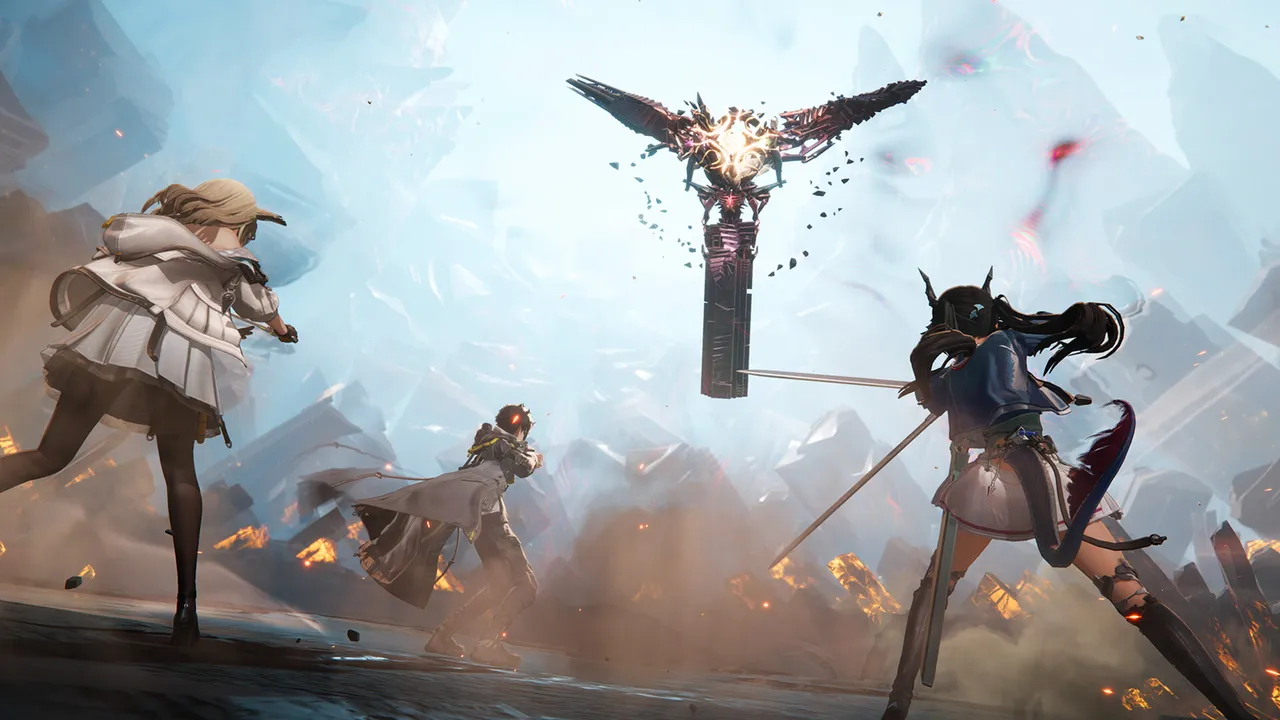
Combat is a solo, PvE affair, so you do not need competitive frame rates. A locked 60 fps feels good. Two scenes tend to stress a PC more than a quiet field:
- Big fights. Many effects at once strain the GPU. If frames dip here, lower Shadows and special effects first.
- Large factory bases. Dense machines, conveyors and power towers add draw calls and CPU work. Test your frame rate in your busiest base before you pick a cap. If the CPU is the limit, lowering graphics settings helps less than you expect, and a lower cap helps stability.
The October 15 update also added more flexible targeting controls and Combo Skill priority settings. Both are worth a look in the combat options, since they cut down on fiddly inputs during busy fights.
Playing on a laptop
- Plug in. Most laptops cut performance sharply on battery.
- Use the high-performance power mode in Windows and in the laptop's own control app.
- Check the game uses the dedicated GPU. Set this per app in the Windows graphics settings.
- Cap at 60 fps. Less heat and fan noise, and the game still feels smooth.
- Keep it cool. A stand or cooling pad helps during long base-building sessions.
Steam Deck support is not stated on the store page, so treat handheld play as unverified. If you want to play away from your desk, the mobile and PS5 versions share the same account.
Peripherals that help
- A mouse with side buttons. Mapping skills or Operator swaps there keeps your fingers on the movement keys.
- A comfortable keyboard and mouse. Factory building means a lot of placing and clicking, often for an hour or more.
- Closed-back headphones. Audio cues help you read enemy attacks, and they block out a noisy room.
- A gamepad. The game is also built for console and mobile, so a controller is a fair option if you prefer to relax on a couch.
- A variable refresh rate monitor. It smooths small frame dips, which is handy if your PC sits just under your cap.
Fixing stutter
Try these in order, and test after each one.
- Update your graphics drivers. New releases often fix issues in recent games.
- Move the install to an SSD. Stutter in new areas is the classic hard drive sign.
- Close overlays and background apps, such as recorders, video tabs and extra launchers.
- Lower textures one step if your card has 8 GB of video memory or less.
- Turn frame generation off if motion feels uneven.
- Verify the game files in Steam if crashes keep happening at the same point.
Quick checklist
- Install on an SSD with 60 GB free.
- Update graphics drivers before the first launch.
- Native resolution, DLSS Balanced or TAAU, frame generation off.
- Cap at 60 fps, V-Sync off.
- Lower fog, shadows and reflections first if you need frames.
Once the game runs well, read our Arknights: Endfield beginner guide for what to do first on Talos-II.
More on Arknights: Endfield
Sources
- store.steampowered.com · store.steampowered.com/app/4732690/
- steamstore-a.akamaihd.net · steamstore-a.akamaihd.net/news/externalpost/steam_community_announceme
- games.gg · games.gg/arknights-endfield/guides/arknights-endfield-best-pc-settings