Contents
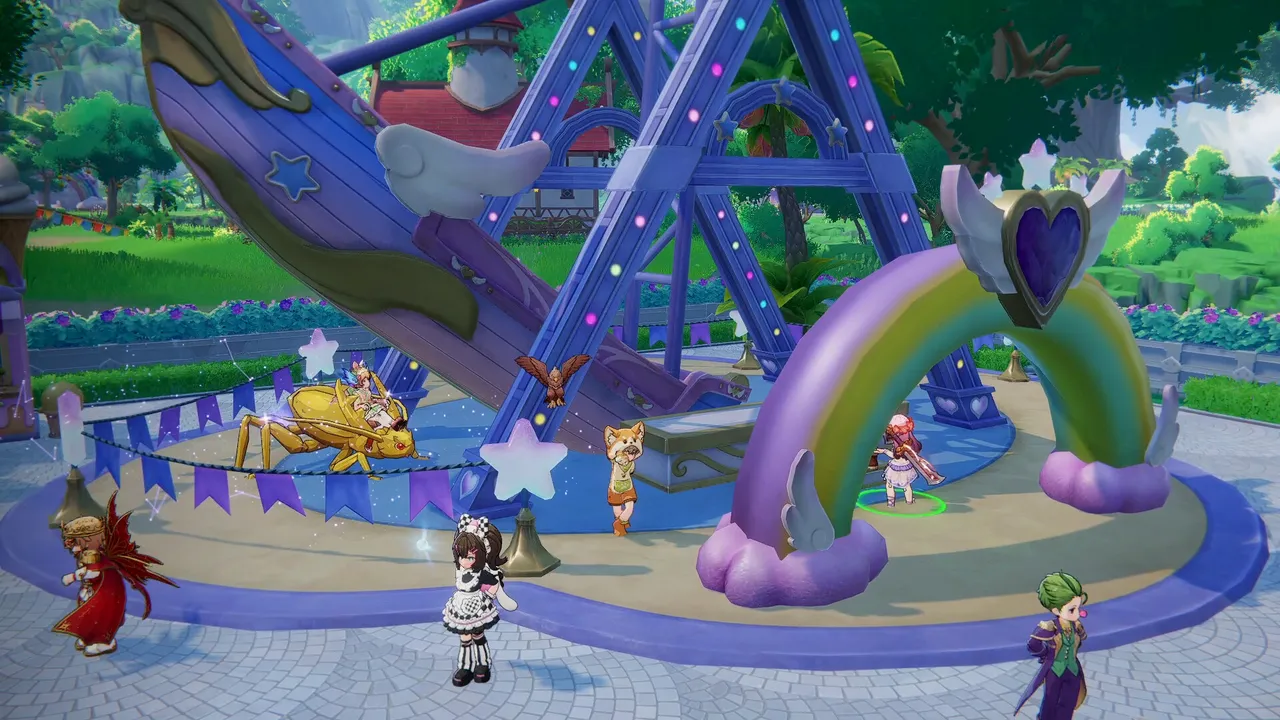
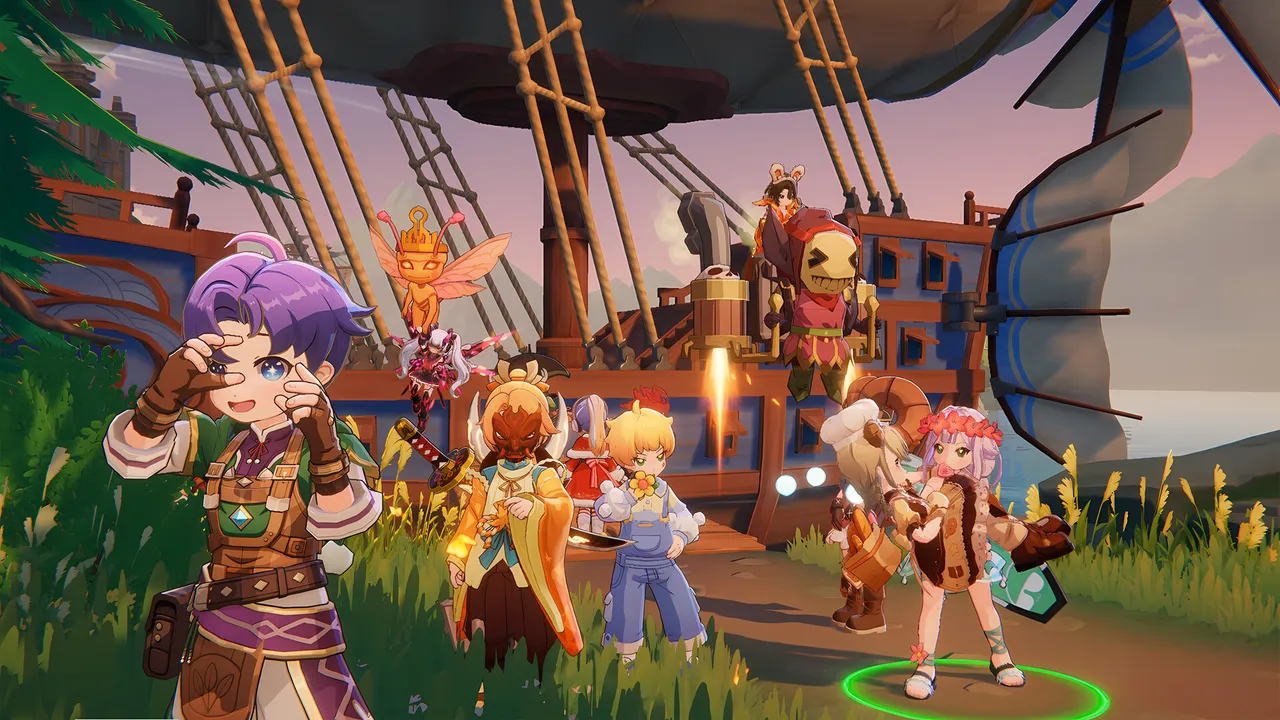
Ragnarok Online: World Journey, released in English as Ragnarok: The New World, is the first open-world take on Gravity's classic MMORPG. It was built for phones first, but the PC version is not a simple port. Gravity promotes sharper visuals and support for up to 120 fps, and the Steam page asks for a surprising amount of memory.
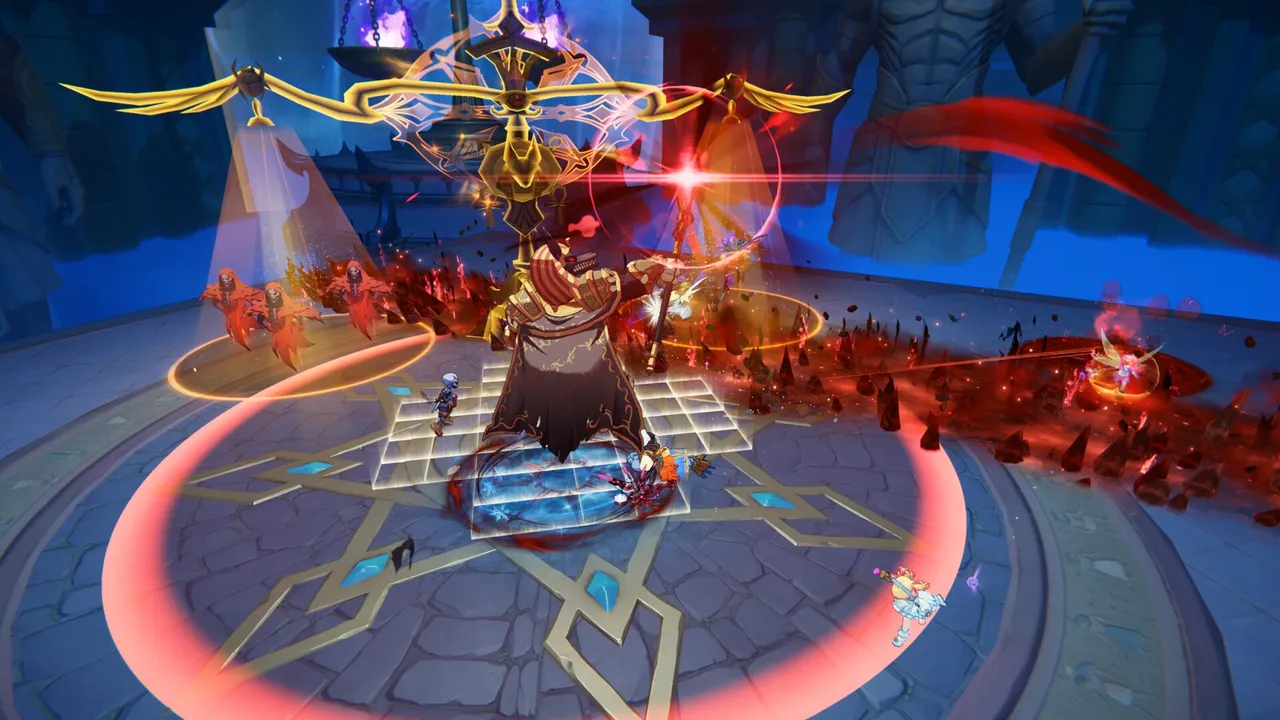
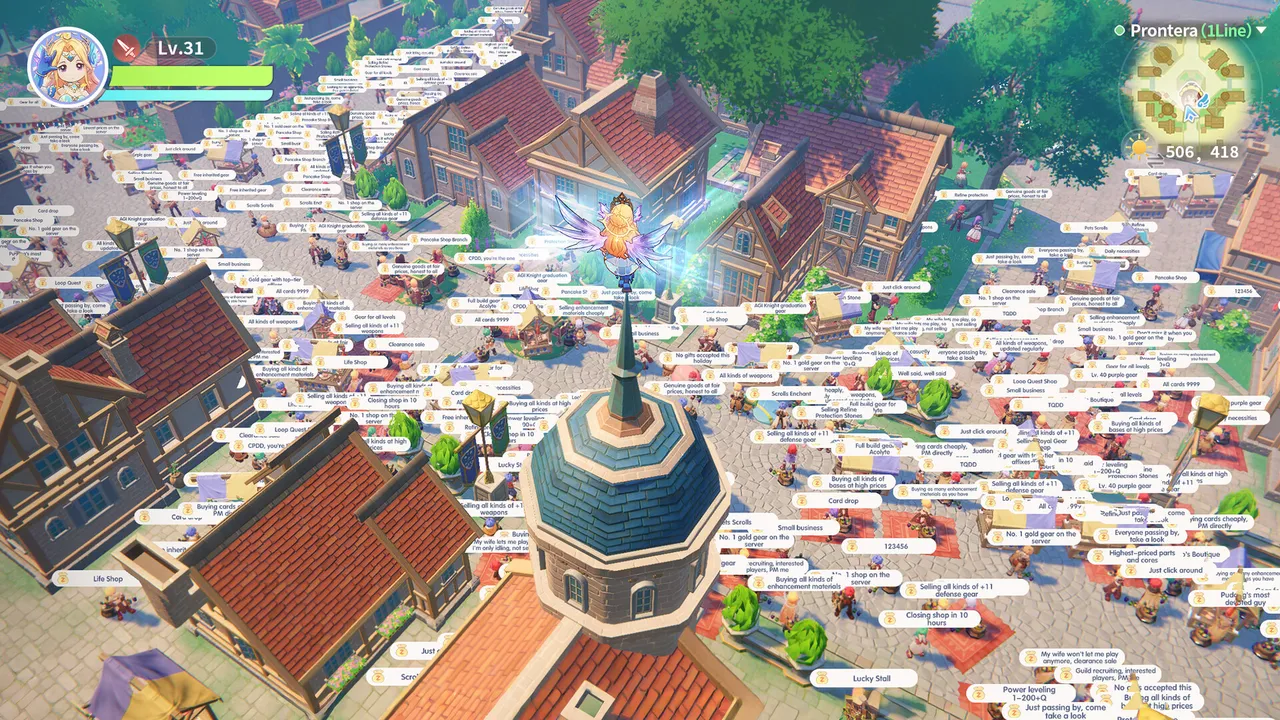
That tells you where the load sits. Open fields are light. The hard moments are crowded towns full of vending shops, MVP boss fights with dozens of players, and guild battles where every skill throws effects on screen. Those scenes lean on your memory, your processor and, above all, your connection to the servers.
This article covers the official requirements, the settings that matter, the heaviest situations, laptops, useful gear and a stutter checklist.
Official PC requirements
These are the only specs listed on the game's Steam page (app 4212480), published by Gravity Game Vision Limited.
| Minimum | Recommended | |
|---|---|---|
| OS | Not listed | Not listed |
| Processor | Not listed | Not listed |
| Memory | 12 GB RAM | 16 GB RAM |
| Graphics | Not listed | Not listed |
| Network | Broadband connection | Broadband connection |
| Storage | 30 GB available space | Not listed |
A few notes:
- Memory is the real gate. A 12 GB minimum rules out most 8 GB laptops. With a browser and voice chat open, 16 GB is the comfortable target.
- No processor or graphics card is named. Gravity gives no official chip list, so we won't invent one. Since the game also runs on phones and tablets, any reasonably recent PC with a dedicated graphics card or a modern integrated chip should handle the lower presets. Higher presets at 120 fps need more.
- Windows only on Steam. Steam lists no Mac or Linux version, and no official Steam Deck rating has been published.
- One account, three ways in. The same Gravity account works on Steam, Gravity's standalone PC client and the mobile apps, so your character follows you. English players currently land on the Southeast Asian (SEA) servers.
- Install on an SSD. Storage is listed as 30 GB, and the open world streams in new areas as you travel. A hard drive means longer loads and late-appearing models.
Best settings for smooth play
The game ships with a few graphics presets plus individual options. Start from the preset that fits your PC, then adjust:
| Setting | Recommended | Why |
|---|---|---|
| Graphics preset | The middle preset on mid-range PCs, the highest only on strong ones | A clean starting point before fine-tuning |
| Frame rate | 60 fps, or the 120 fps mode if your PC holds it | A steady 60 feels better than a shaky 120 |
| Display mode | Fullscreen | Usually the most stable frame pacing on PC |
| Resolution | Your monitor's native resolution | Keeps text, names and shop signs sharp |
| Textures | High if you have 16 GB RAM, Medium on 12 GB | Light on frame rate, heavier on memory |
| Shadows | Low to Medium | One of the biggest frame rate costs |
| Effects quality | Medium | Skill effects pile up in group fights |
| Reflections | Off or Low | Costly, and you rarely notice them in combat |
| Visible character count | Lower in towns and events | Fewer players drawn means less CPU work |
| Camera distance | Zoomed out for bosses | Better awareness, small cost in busy areas |
If you still need more frames, change these in order:
- Lower the visible character count. This helps most in towns and events.
- Drop shadows to the lowest level.
- Turn effects quality down one step.
- Turn off reflections if you haven't yet.
- Cap the frame rate at 60 instead of 120.
- Lower textures last, and only if you are on 12 GB of RAM.
Some option names can change between updates. If you don't see one of these in your version, use the closest match.
Crowded towns, MVPs and guild battles
The game's heaviest moments have little to do with scenery. Prontera-style trade hubs fill with player shops, each with its own sign and character model. MVP spawns and guild occupation battles add dozens of players casting at once. In those scenes your processor has to track every character, and your graphics card has to draw every effect.
Three habits help:
- Create a "crowd" setup. Before a boss or siege, lower the visible character count and effects quality. Raise them again when you go back to exploring.
- Cut screen clutter. If your version lets you reduce damage numbers or floating notices, do it for boss fights. It helps readability as much as frame rate.
- Use the manual camera for bosses. Auto camera is fine for farming, but a fixed, zoomed-out view makes big fights easier to read.
Ping matters as much as hardware here. On SEA servers, players in Southeast Asia should have a smooth connection. Players in Europe or the Americas will see higher latency, most noticeable in PvP and fast boss mechanics. A wired connection helps, but no setting can shorten the distance to the server. Don't use VPN tricks or unofficial clients to change regions: they can put your account at risk.
Playing on a laptop
- Check your RAM first. If your laptop has 8 GB, the game falls below the official minimum.
- Plug in. On battery, most laptops slow the processor and graphics chip down.
- Use the dedicated graphics card. On laptops with two graphics chips, make sure the game runs on the stronger one in your system's graphics settings.
- Cap at 60 fps for long sessions. Auto-battle farming can run for hours, and a lower cap keeps heat and fan noise down.
- Mobile as a companion. For quick checks on events or offline rewards, the phone version uses the same account, so you don't need to start the PC.
Peripherals that help
- A mouse with side buttons. Bind skills or menus you use often to the extra buttons.
- A keyboard you can comfortably reach the number row on. Skills sit on number keys on PC, and you will press them constantly.
- A wired network connection or a good router. In a server-sensitive MMO, a stable connection matters more than a faster graphics card.
- A headset with a microphone. Useful for guild battles and MVP groups.
- A cooling pad for laptops. It helps during long auto-battle sessions.
Steam lists keyboard-only and mouse-only options, but no controller support, so plan around keyboard and mouse.
Fixing stutter
- Close memory-hungry apps. Browsers with many tabs can push a 12 GB system over the edge.
- Move the game to an SSD if it sits on a hard drive.
- Lower the visible character count in towns and events.
- Cap the frame rate a little below what your PC can hold, so it stays steady.
- Update your graphics driver from your card maker's site.
- Verify the game files in Steam (Properties, then Installed Files) after a failed update.
- Switch from Wi-Fi to a cable if the stutter looks like rubber-banding. That points to the connection, not your PC.
- Check official announcements during maintenance or patch days. Gravity posts updates on Steam and in-game notices.
Quick checklist
- 16 GB of RAM if you can, 12 GB at the very least.
- Install on an SSD with 30 GB free.
- Start from the middle preset, then cap at 60 or 120 fps.
- Lower shadows, effects and character count before textures.
- Use a crowd setup for MVPs and guild battles.
- Play on a wired connection, especially outside Southeast Asia.
- Download only from Steam, Gravity's official site or the official app stores.
New to Midgard? Read our Ragnarok Online: World Journey beginner's guide for classes, progression and your first hours.
More on Ragnarok Online: World Journey
Sources
- store.steampowered.com · store.steampowered.com/app/4212480/
- steamcommunity.com · steamcommunity.com/ogg/4212480/announcements/detail/697647086599933025