Contents
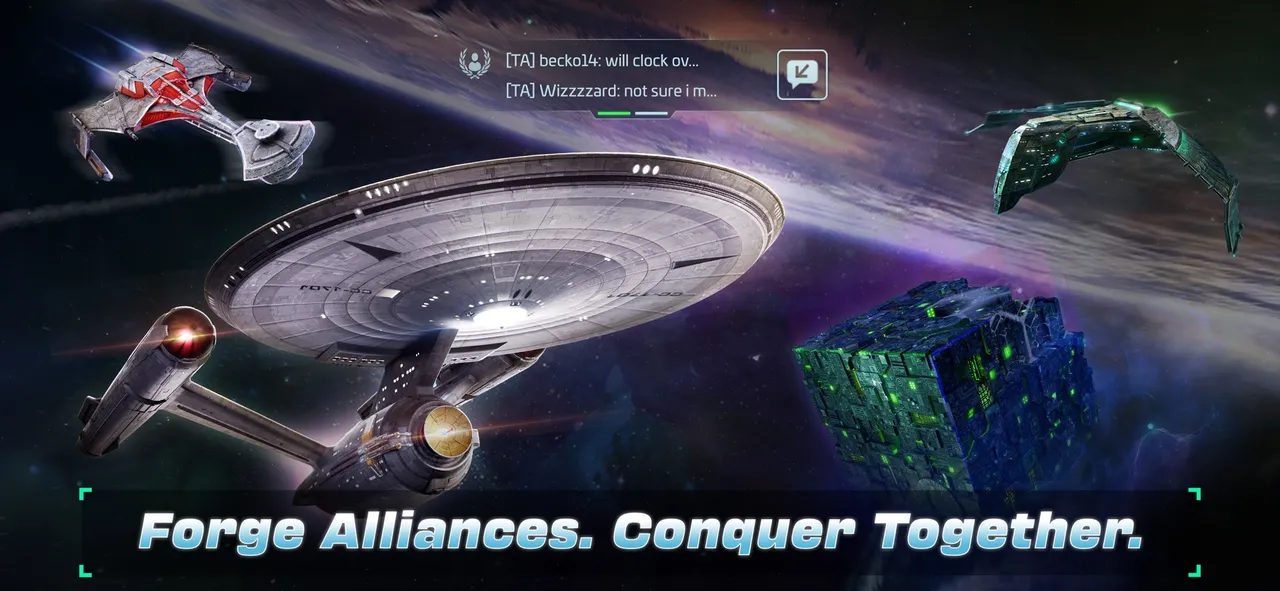
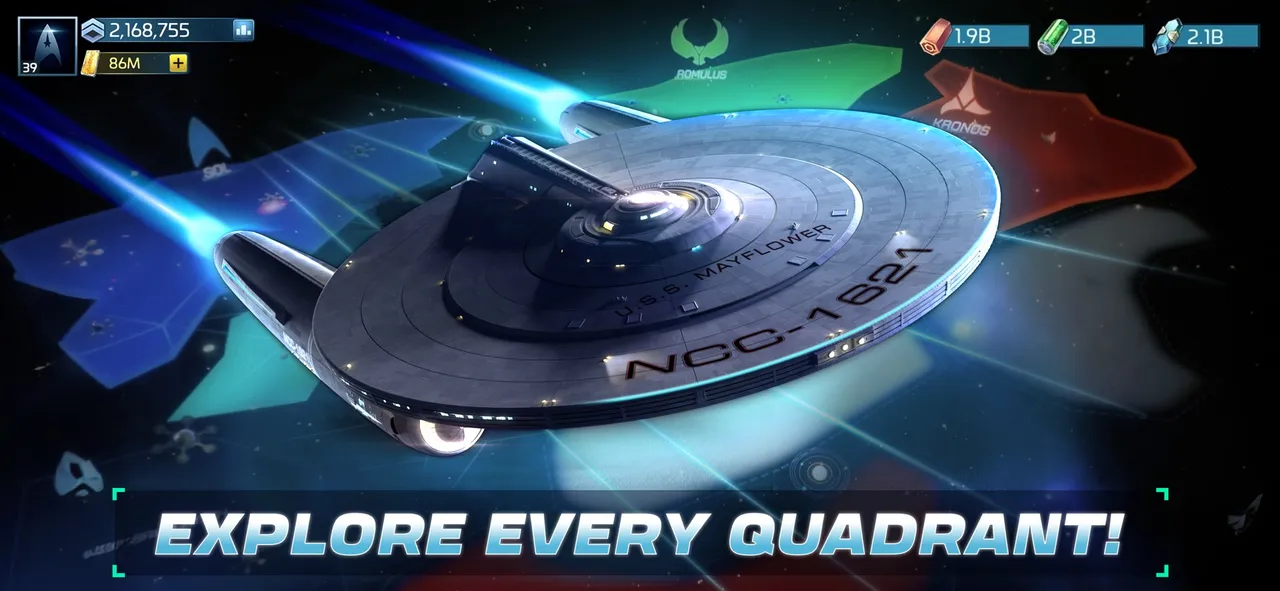
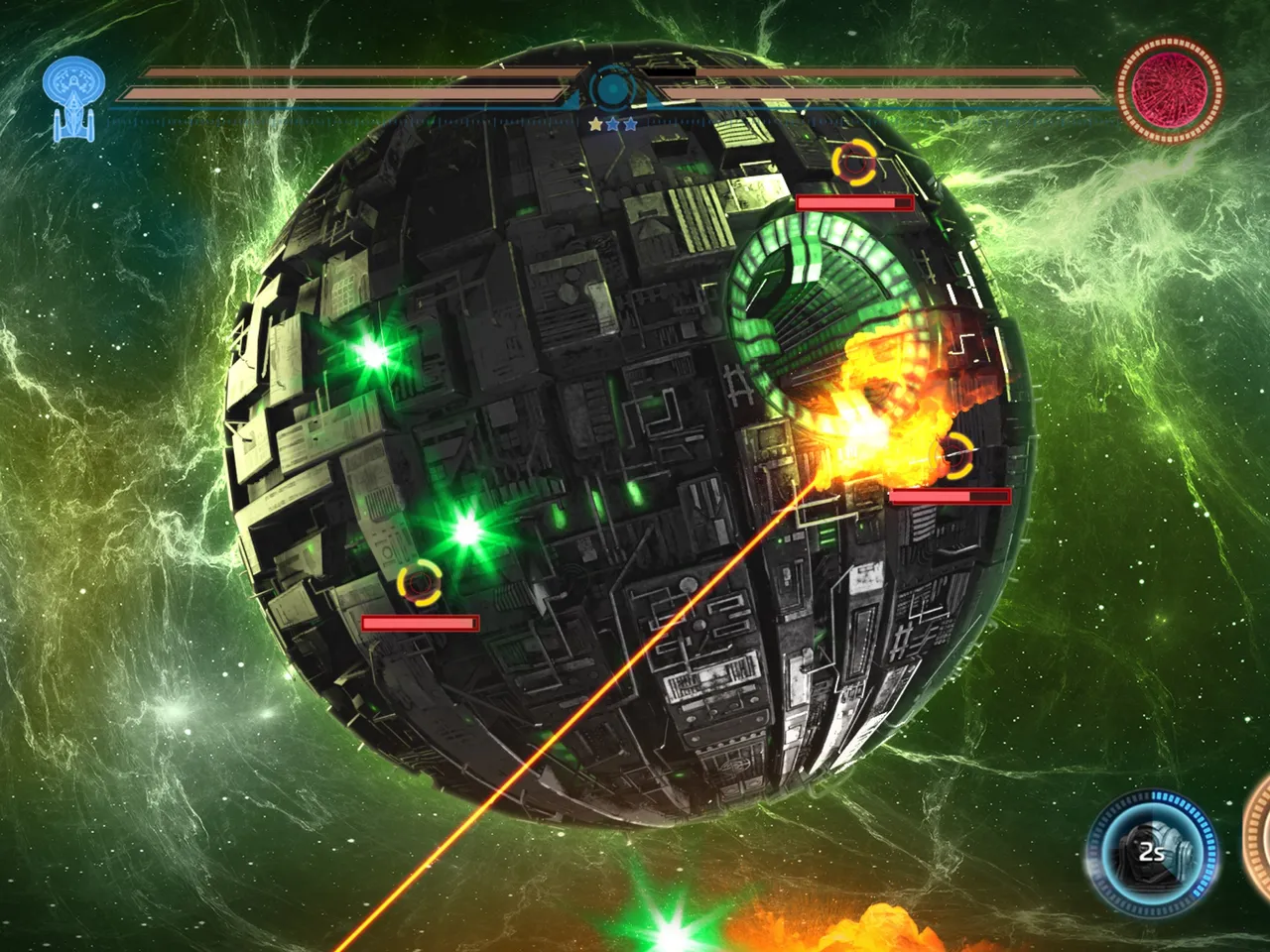
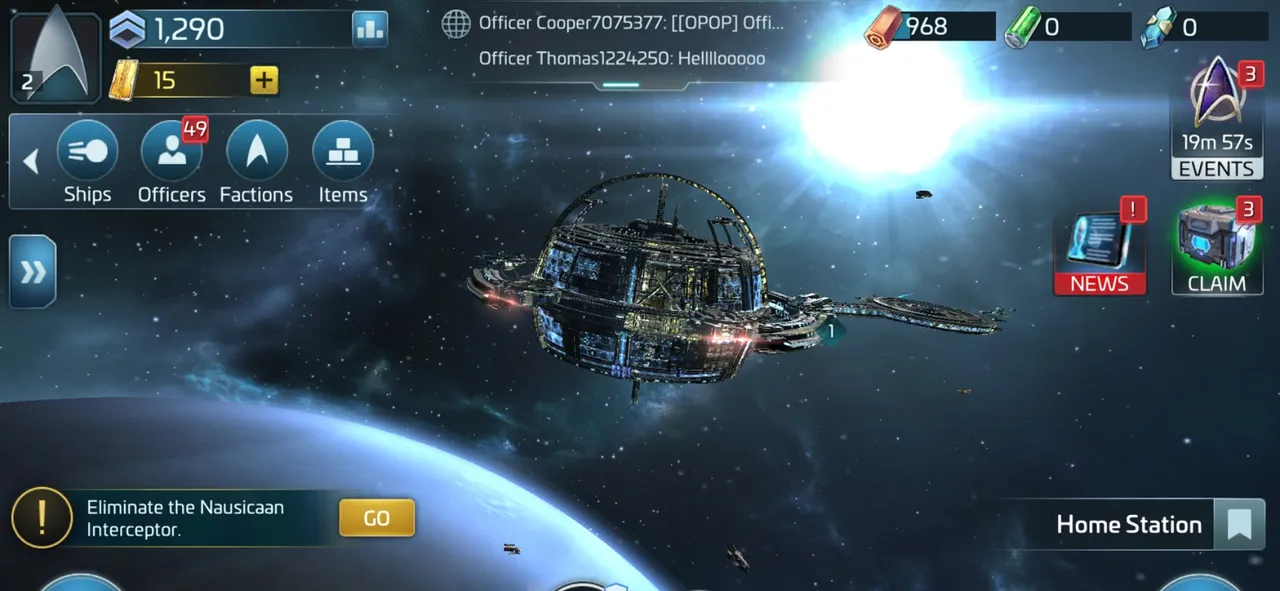
Star Trek Fleet Command is a mobile strategy game first, but its heaviest work is not graphics. It is reading: the galaxy map, station menus, officer screens, alliance chat and event timers. That makes a computer with a big screen and a mouse a very comfortable place to play. The 3D space battles are light by PC standards. The real enemies are a weak connection, a crowded desktop and a launcher that needs a repair now and then.
This article covers Scopely's official requirements, your options for playing on a computer, how to protect your account, the settings that matter, and how to fix the most common problems.
Official PC requirements
Fleet Command is not on Steam. Scopely distributes its own Windows and Mac clients from startrekfleetcommand.com. A Windows version first arrived in September 2021, and Scopely's help center lists the current Windows and macOS clients from February 28, 2023. The help center publishes operating system minimums only. It gives no CPU, graphics card or RAM figures, and no recommended tier.
| Platform | Minimum (official) | Recommended |
|---|---|---|
| Windows | Windows 10 version 21H1 or newer | Not published |
| Mac | macOS Big Sur 11 or later | Not published |
| iOS / iPadOS | iOS 13 or later | Not published |
| Android | Android 7.0 or later | Not published |
- Intel Macs are on a countdown. Scopely says support for Intel-based Macs ends in 2027. If you are buying a Mac for the game, choose Apple Silicon.
- Specs are not a guarantee. Scopely itself notes that meeting the minimum may not be enough for a good experience. Any computer from the last few years with 8 GB of RAM or more and an SSD should feel comfortable, but that is practical guidance, not an official figure.
- Storage: the iOS build is about 1 GB on the App Store, and the game downloads more data as you play. Leave several gigabytes free for updates.
- No Linux or Steam Deck client. Only Windows and macOS are officially supported on computers.
Your options to play on a computer
- Official Windows or Mac client (best choice). It comes straight from the publisher, is built for keyboard and mouse, and shares your progress across platforms through a Scopely Account. Scopely has also run PC-only perks, such as exclusive store deals and launch cosmetics.
- Android emulators. Scopely's help center says emulators are not officially supported and that it can't help with technical issues while you play on one. Since a native client exists, there is little reason to add a full Android system on top of your computer.
On a Mac, install the game in the Applications folder. Scopely says a false "not enough disk space" message usually means it was installed somewhere else.
Protect your account first
Your progress follows you between devices only after it is saved to a Scopely Account.
- Existing mobile player: save your game to a Scopely Account on your phone or tablet before installing anything else.
- Download the PC or Mac version from the official site, run it, and choose to sign in with your Scopely Account.
- New player: you can start on PC, finish the tutorial, then save to a Scopely Account from Settings > General.
- Never share your login with alliance mates or "account services," and download the game only from the official site.
- Avoid running the game on two devices at once, and bring ships home before switching.
Best settings for Fleet Command on PC
The official client has no long list of graphics options like a PC-first game, so focus on what you control.
| Setting | Recommended | Why |
|---|---|---|
| Resolution | Your monitor's native resolution | Keeps small menu text and timers sharp |
| Window mode | Borderless or windowed on one screen | Easy switching to Discord or a wiki |
| Quality or effects option (if your version has it) | Medium, raise if smooth | Space battles are light, but lower settings help older laptops |
| Frame rate limit (if your version has it) | 60 fps | Fleet Command doesn't need more, and a cap keeps fans quieter |
| Windows graphics preference | High performance for the game | Stops laptops from using the weaker chip |
| Install location | SSD | Faster loads between station, system and galaxy views |
If you still need more frames, in this order:
- Close browser tabs and video streams running behind the game.
- Lower any quality or effects option one step.
- Play windowed at a lower size instead of full screen on a very high resolution display.
- Update your graphics driver on Windows or macOS itself on a Mac.
Events, armadas and busy systems
The heaviest moments are not visual. They are crowded systems during events, armada launches, territory capture and alliance starbase assaults, where many players and ships load at once. Here a lag spike costs more than a dropped frame.
- Use a wired connection if you can. Scopely's support advice centers on a stable network. If you see "Getting Endpoints," the game is having trouble reaching its servers.
- Switch connections (Wi-Fi, then mobile hotspot, or the other way) to see which performs better, and note the result if you contact support.
- Pause big downloads and cloud backups before an armada or event push.
Playing on a laptop
- Plug in. Battery saver modes throttle the processor and can cause choppy map scrolling.
- Set the game to the dedicated graphics chip in Windows graphics settings if your laptop has two.
- Raise the laptop on a stand for airflow during long mining and event sessions.
- On an Intel Mac, plan an upgrade path before 2027.
On mobile, keep notifications on for attacks and finished upgrades. Your phone remains the best alarm even when you play on PC.
Peripherals that help
- An ergonomic mouse. You click constantly: chests, upgrades, map markers. Comfort matters more than a fast sensor.
- A larger or second monitor. Keep alliance chat, Discord or a crew planner beside the game.
- A headset with a microphone, for alliances that coordinate armadas and assaults by voice.
- A wired network adapter or cable if your desk is far from the router.
- A laptop stand or cooling pad for long sessions on a portable.
Fixing stutter
- Check your connection first; most "lag" in Fleet Command is network-related.
- Close background apps, especially browsers and overlays.
- Update Windows or macOS. Scopely lists this as the first step for Mac issues.
- Open the game launcher and use Options > Repair.
- If that fails, use Options > Uninstall, then reinstall from the official site.
- On a Mac, if problems remain, Scopely suggests deleting the game's data folder in your user Library (Application Support, com.scopely.startrek) and then repairing or reinstalling. Make sure your account is saved to a Scopely Account first.
- Still stuck? Contact support from a supported platform and describe your hardware.
Quick checklist
- Windows 10 21H1 or newer, or macOS Big Sur 11 or later
- Apple Silicon if you are buying a Mac
- Progress saved to a Scopely Account before switching devices
- Client downloaded only from startrekfleetcommand.com
- Native resolution, frame cap at 60 if available, game on an SSD
- Stable, preferably wired connection for events and armadas
Once your setup runs smoothly, read our Star Trek Fleet Command beginner's guide for tips on your station, ships and officers.
More on Star Trek Fleet Command
Sources
- scopely.helpshift.com · scopely.helpshift.com/hc/en/19-star-trek-fleet-command/faq/6504-minimu
- scopely.helpshift.com · scopely.helpshift.com/hc/en/19-star-trek-fleet-command/faq/5985-pc-lau
- scopely.helpshift.com · scopely.helpshift.com/hc/en/19-star-trek-fleet-command/faq/4955-emulat